Library integrations
Open Integrations in Library to connect the services you use. Game-account connections support opening preparation and Insights; other integrations help you collect positions to review.
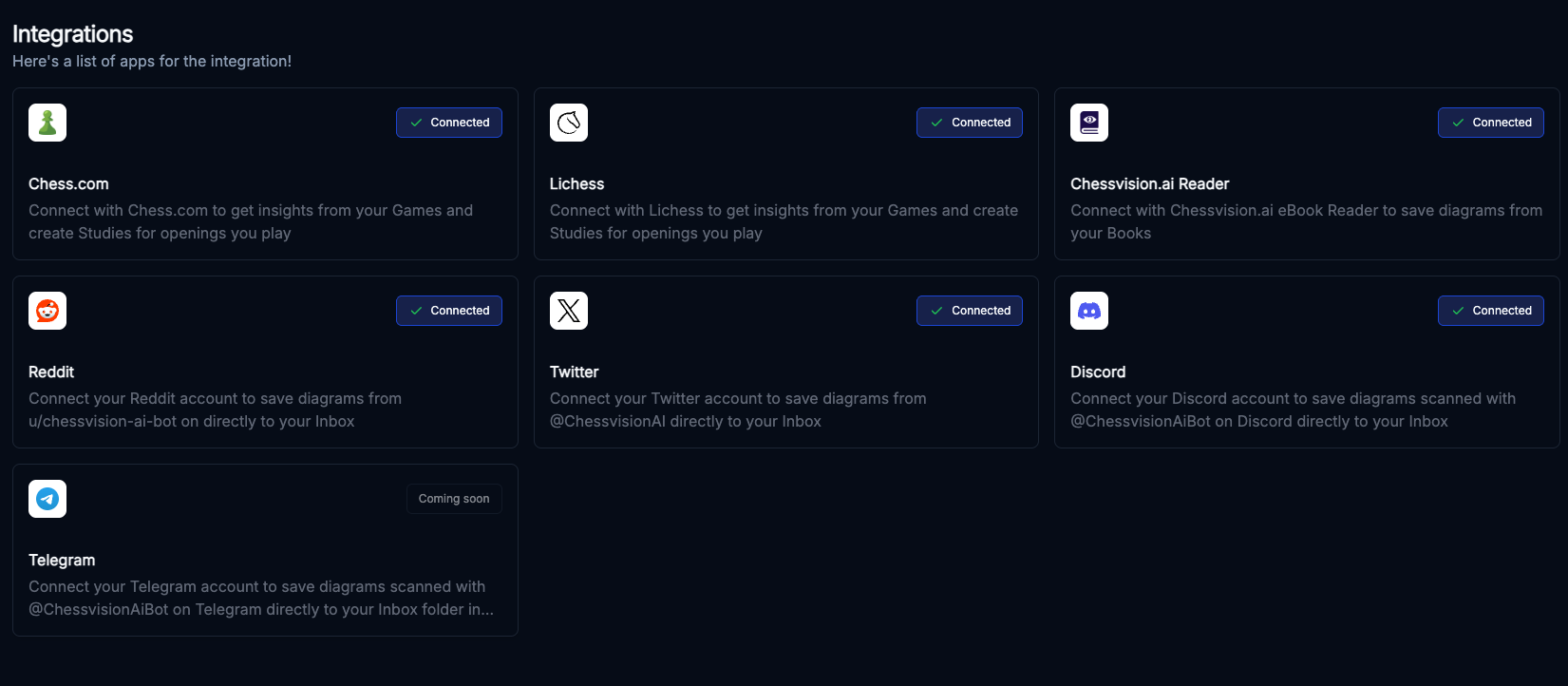
Connect Chess.com or Lichess
- Open Integrations.
- Choose Chess.com or Lichess.
- Enter your username for that service and complete the connection.
- Check that the integration shows Connected.
- Open Opening Assistant to examine the openings from your games.
Use the account's username rather than its display name. When working with results, check the game source and color filters so you are viewing the account and repertoire you intended.
Then use Insights to review gaps in your opening preparation and missed endgame opportunities.
Connect the eBook Reader
The eBook Reader integration links diagrams from your books to your Library workflow. For help opening books and working with diagrams, follow the Reader tutorial.
- Open the Chessvision.ai Reader integration and read its instructions.
- In the eBook Reader, go to Settings → Integrations.
- Enter the email address associated with your Library account and click Connect.
- Return to Library and refresh the Integrations page to check the connection.
You can then use From Reader import to bring in diagrams from a selected document and page range. This import requires an active eBook Reader subscription.
Connect other supported services
The Integrations screen includes connections for Reddit, Twitter/X, and Discord. Select the service and follow the instructions shown for it. Some connections use a code from a bot; others use the service's authorization flow.
Check Inbox for positions saved through those connections. Choose a position that contains a useful lesson, open it as a Study, and add the moves or training goal you want to practice.
If an integration is marked Coming soon, it is not available to connect yet. Use the scanner apps or import options to bring the position into Library in the meantime.
Browser Extension and Mobile App
For positions captured with the Browser Extension or Mobile App, use the same Chessvision.ai account as Library. After scanning, click or tap the star/save button to save the position, then open Inbox in Library. You do not need to connect a Chess.com or Lichess username just to save a scanned diagram.
See Save scanned positions for the capture workflow, or Troubleshooting if something is missing.