Studies and Folders
A Study contains a starting position and the moves and variations you want to explore. It can cover a single tactic, an opening line, or an endgame you want to practice. Folders help you organize those Studies.
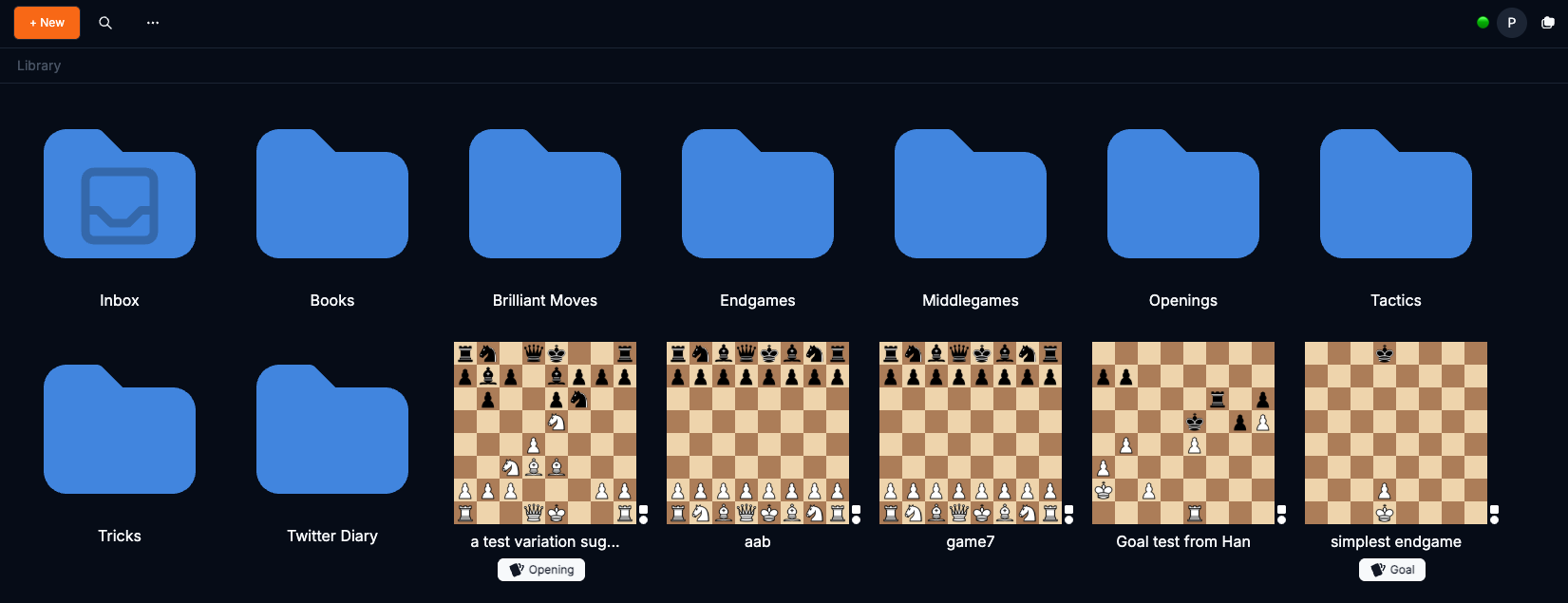
Create a Study
- Open the Folder where you want to keep the Study.
- Click + New → Study.
- Enter a name and choose Study as: White or Black.
- Start from a FEN, paste a PGN, or use Setup to arrange a position. An empty FEN field uses the standard starting position.
- Select any relevant tags and click Create.
If you are starting with an opening Study, add the Opening tag so it can be used for opening Insights. A Folder name alone does not replace that tag.
Add moves and variations
Play a move on the board to extend the Study. To explore an alternative, return to the position where the line branches and play the other move.
The tree view helps you see the relationships between variations. Select a node to inspect its position. On desktop, right-click a node for actions such as making a variation the main line or creating a new Study from that point.
You can drag to pan the tree and double-click a node to center it. On touch devices, drag to pan, pinch to zoom, and double-tap to center a node.
Analyze and annotate a position
Select the position you want to explore, then use the tools around the board:
- Engine: investigate candidate moves and compare evaluations.
- Opening explorer: inspect moves played in other games and their results.
- Comments: explain the purpose of a move or the mistake you want to avoid.
- Annotations: mark important squares and draw arrows.
- Videos: look for explanations matching the selected position and pin useful material.
A helpful comment answers a concrete question: “What am I threatening?”, “Which exchange helps me?”, or “What changes if my opponent plays this move?”
Matching videos are not available for every position. You can still analyze and annotate the Study without them.
Compute a solution
For a position where you want engine help building a continuation, use Compute Solution from the analysis tools. Select the starting node, review the engine depth, number of responses, and maximum solution length, then run the calculation.
Review the resulting variations before turning them into training material. In a tactical Study, the responses you include determine what you can practice; a short generated line may not cover every defense you want to learn.
Create and use Folders
Click + New → Folder inside the Folder where you want the new one. A simple structure might contain Openings, Tactics, and Endgames, with smaller Folders added when needed.
To move a Study, right-click it on desktop or long-press on a touch device and choose Move to…. On desktop, you can also drag Studies into Folders.
Use clear Study names, such as “French Defense: response to early c4” or “Rook ending: active king.” Names that describe the lesson are easier to recognize during review.
Find and update a Study
Use Library's search control, or change the view and sorting to browse your material. Inside a Study, open the menu beside its name and choose Edit to change its name or tags.
Before enabling Flashcards, check Study as. This chooses the side you will practice; rotating the board only changes how you view the position.
Continue with Flashcards or Import and export.