
Have you ever tried a move in a Duolingo chess puzzle and wondered why it didn’t work?
You have an idea, maybe you want to attack a piece or win a Pawn, but the move isn’t accepted. You can try something else and eventually finish the puzzle, but there’s still a question:
Why didn’t my idea work, and what makes the correct move better?
To analyze a Duolingo chess position, take a screenshot and share it with the Chessvision.ai app. It opens an interactive board where you can play your own moves and check the responses with the engine. There’s no need to set up the pieces manually, and it works on both iOS and Android.
Here’s a short video I made showing the whole process on my iPhone. Below, I’ll go through the example and explain how you can use the same workflow with a position you’re interested in.
Get the Chessvision.ai app shown in the video
Share a screenshot and explore your own moves.


The puzzle and my idea
In this puzzle, the goal is to trap a Knight. I tried moving my Queen to d2, but Duolingo didn’t accept it.
The interesting part for me is what happens after that move. Can Black escape, or is there something else I’m missing? To find out, I need to be able to play the continuation, including Black’s moves.
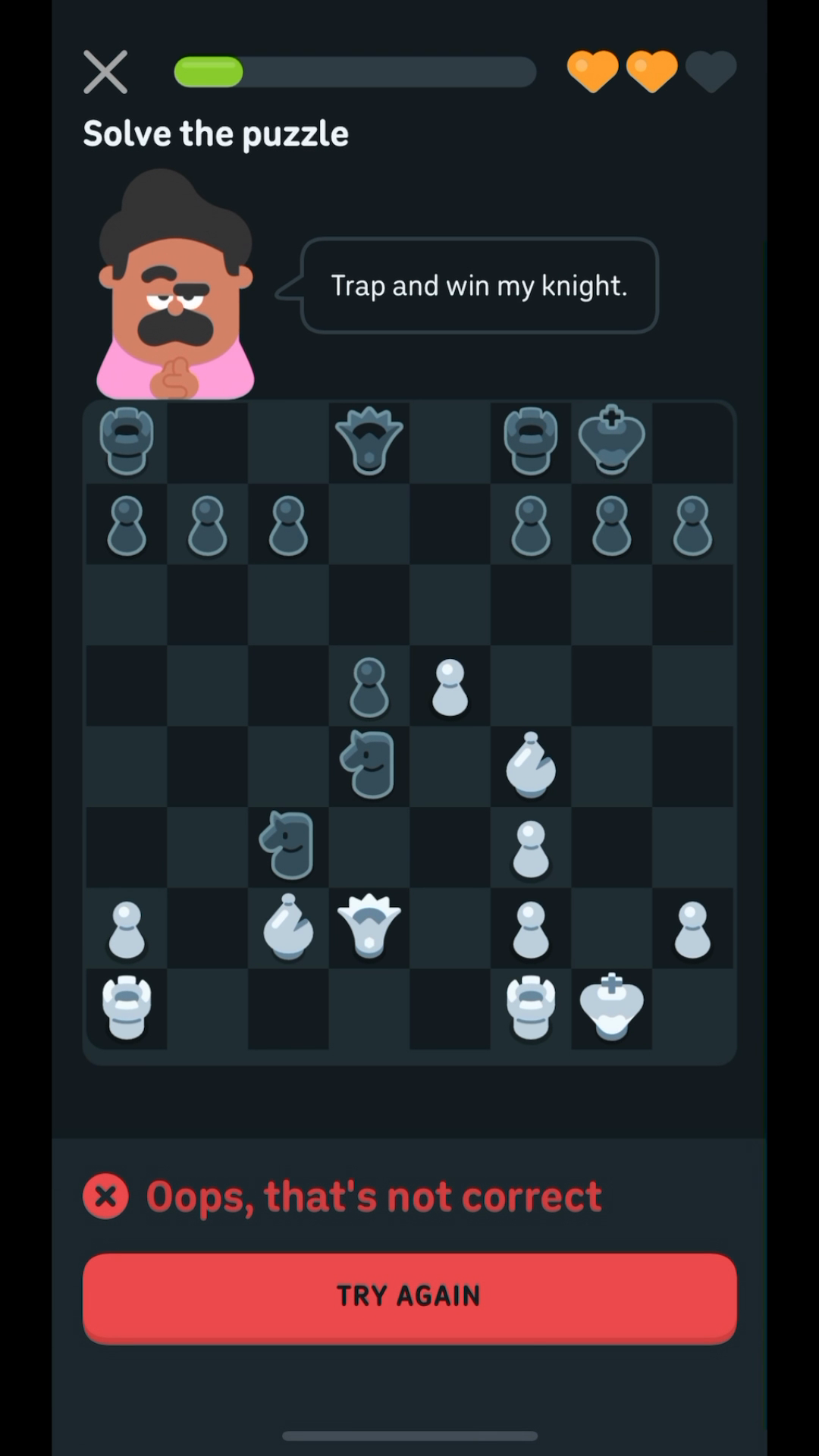
First, take a screenshot with the whole board visible. If you’ve already moved pieces, return to the position you want to explore before taking it. That way, you can try your original idea and other moves from the same starting point.
Open the Duolingo chess position on an analysis board
On my iPhone, I open the screenshot, tap Share, and choose Chessvision.ai from the share sheet:
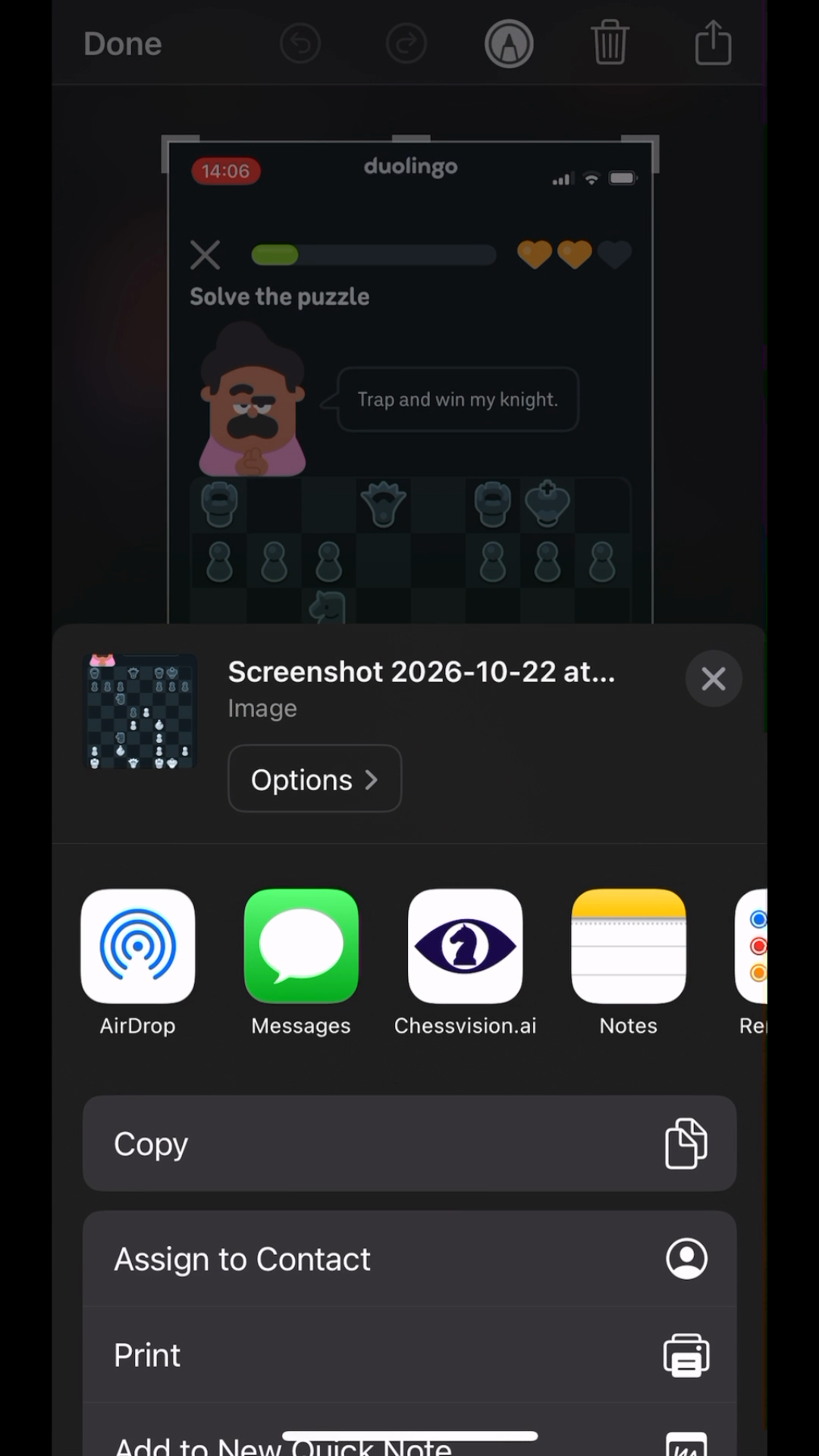
The app recognizes the position and opens it on the analysis board. From there, I can move the pieces, go back, and try a different continuation. This is useful because I can test the moves I was actually thinking about while solving the puzzle.
If you’ve saved the screenshot already, you can also load it from your Gallery. The mobile app is available for both iOS and Android; the video shows the iPhone sharing flow. You can find more about importing images in the mobile app tutorial.
Finding out why my move fails
I play Queen to d2 again and turn on the engine using the switch below the board.
Black takes my Pawn with a Knight. It looks as though my Queen can simply capture that Knight. But when I do, Black’s remaining Knight gives check while also attacking my Queen.
That’s a fork: one piece attacks two pieces at once. Here, the check means I have to deal with the threat to my King first.
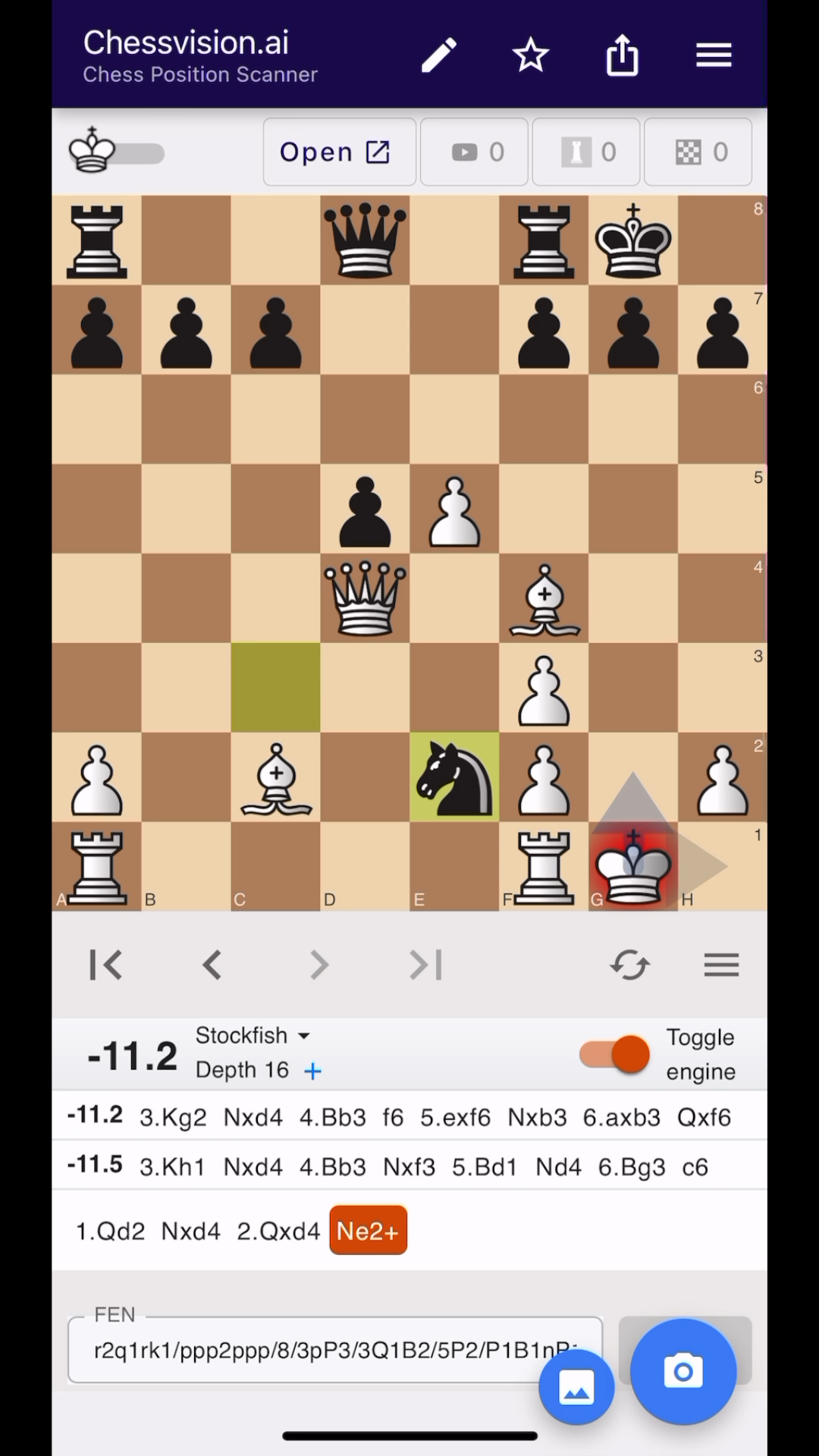
In the line shown, I move my King out of check, and Black takes my Queen. That’s not good.
Now I can see what was wrong with the continuation I had in mind. I was expecting to win a Knight, but capturing it allowed Black to win my Queen.
This is also why it helps to play the moves on the board. An engine evaluation can tell me that a position is bad, but following the moves shows me what actually goes wrong.
Understanding why Queen to d3 works
I go back to the starting position and look at the engine’s recommendation: Queen to d3.
This move attacks the Knight and threatens checkmate on h7 at the same time.
What if Black takes my Pawn, just as before? This time, my Queen can capture the Pawn on h7. Checkmate.
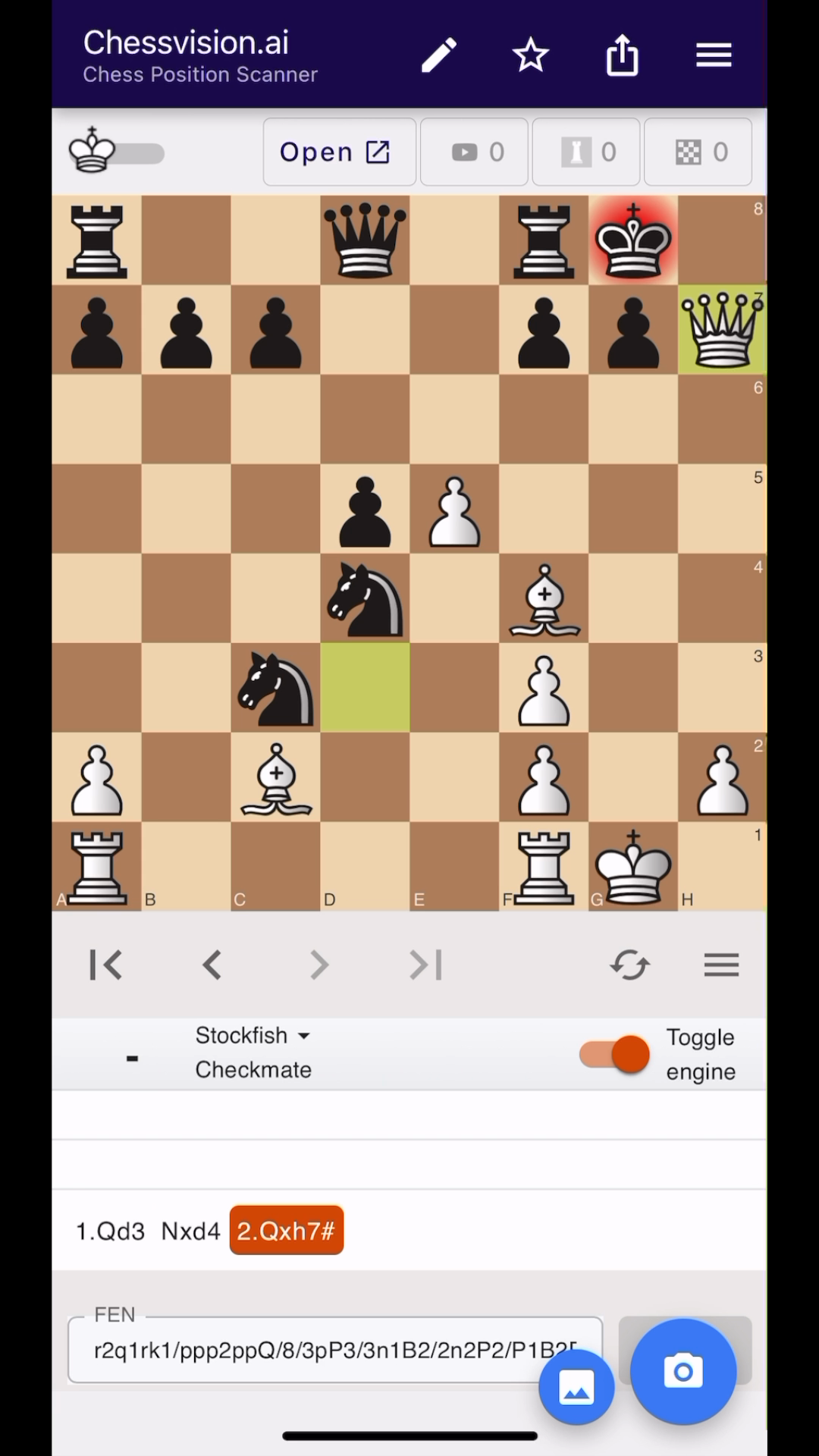
So Black cannot use the same idea without getting checkmated. The Knight is still trapped, and moving it doesn’t give it a safe escape. In the engine’s suggested line, that Knight gives check, my Queen captures it, and Black then takes my Pawn with the remaining Knight.
This way, I win a Knight for a Pawn. Much better.
Comparing the two moves makes the difference easier to understand. Queen to d3 creates a checkmate threat that Queen to d2 didn’t have. That changes what Black can afford to do next.
Back to Duolingo
Back to Duolingo. I play Queen to d3 and continue the puzzle.
I now know why my original idea didn’t work and why this move is better. There are two things I can take from this puzzle into other positions: watch for Knight forks before making a capture, and look at how a checkmate threat limits the opponent’s replies.
Analyzing your own Duolingo chess puzzles
Your puzzle will probably have a different position, but you can follow the same process:
- Take a screenshot of the position.
- Share it to Chessvision.ai
- Try your move and explore the replies.
- Go back and compare the engine’s recommendation.
When comparing moves, I’d start with the response you were worried about. In this example, it was Black taking my Pawn. I tried that response after both Queen moves, and the difference became clear. You can ask the same question in your position: can the opponent still capture that piece, give that check, or defend against my threat?
You don’t have to explore every possible move. Start with the one question that stopped you from understanding the puzzle, and follow it until you can explain what happens.
Can I analyze a position from a Duolingo chess game too?
Yes. If you’re reviewing a completed game, take a screenshot of the position you want to understand and share it with the app. You can try the move you played, check the opponent’s responses, and compare other ideas, just as in the puzzle above.
Each screenshot imports one position, rather than the moves of the whole game. If you want to explore several moments, take a screenshot of each one.
What if I still don’t understand the engine’s reply?
Play the move you think should work against it. If you think a piece can be captured, capture it and check the next response. If you think you can ignore a threat, try doing that on the board. You can always go back.
Sometimes the point is a few moves later. In the example above, Black taking my Pawn wasn’t enough to explain the problem. I needed to capture the Knight and see the fork that followed.
Can I try my moves without seeing the answer?
Yes. Keep the engine off using the switch below the analysis board. You can make moves for both sides and try to work out the continuation yourself. When you want to check your analysis, turn the engine on.
This also lets you separate two questions: what do I think the opponent will play, and what is their strongest response?
What if I already know the correct move?
You can still use the screenshot to understand it. Play the correct move, then try the reply that made you doubt it. After that, go back and compare it with your own idea.
Knowing which move finishes the puzzle is useful, but being able to explain why it works gives you something to recognize in your next game.
Try it yourself: take a screenshot of a puzzle you’re curious about and see what happens after your move.
Understand the move you’re stuck on.
Get Chessvision.ai, share a screenshot, and try your own ideas on the board.
If needed, use the turn switch above the analysis board to change who moves next. In rare cases, the scanned board may need an adjustment; open Edit mode to correct it. The tutorial and FAQ explain these controls.